

Smartsupp Integration

Shopping Assistant can be integrated into multi-channel customer-care solution https://www.smartsupp.com/.
Smartsupp can use AI Shopping Assistant as one of its agents that is assigned to automatically solve issues.
If you already use Smartsupp and want to integrate an advanced AI Shopping Assistant, please contact the Team.
Creating an assistant account
First you need to set up an account for the assistant.
You can create it as a regular agent account here Smartsupp Agents.
Customize the agent name and avatar, and send the account username to the Team.
Setting workflow
The integration supports three workflow scenarios to match your business needs. Choose the one that fits your support strategy.
- Fully automated: AI assistant is assigned to solve all conversations automatically (no live operators are operating the chat)
- Outside of business hours: AI assistant operates outside of regular business hours and automatically responds to conversations within a defined time frame (in Smartsupp settings). Human operators can review conversations during business hours
- Backup when agents are offline: AI assistant is assigned to conversations if no human agents are online. Once a human agent becomes online, they can take over the conversation
Set up a welcome message
It's recommended to set up a welcome message for the AI Shopping Assistant. This helps provide a better customer experience by greeting users and explaining what the assistant can help them with. You can configure the welcome message in your Smartsupp dashboard:
Configure Welcome Message
The welcome message should clearly communicate:
- That customers are interacting with an AI assistant
- What types of questions the assistant can help answer
- How to reach a human agent if needed
Handover to human agents
Sometimes customers need to speak with a real person. The AI Assistant recognizes these situations and transfers the conversation to your human support team.
The AI assistant will offer a handover when:
- Customer asks for a human – phrases like "I want to speak to a person," "connect me to support," or "talk to a real agent"
- Customer expresses frustration – the AI detects dissatisfaction with automated responses
- Question is too complex – the inquiry falls outside the AI's knowledge base
- Sensitive topics – certain topics may be configured to always route to humans
Configuration
To enable handover, specify which agents should receive transferred conversations. You can designate:
- A single agent
- Multiple agents - conversation is assigned to all, the first available responds
- No agents - conversation is left unassigned to be taken over by the first available agent
Testing feedback loop
When the AI assistant is in preview testing mode, it's necessary to provide a proper feedback loop. Please follow these rules:
- Start a new conversation when simulating a conversation with a customer
- Simulate the conversation with the AI assistant (it is best to use real questions from your real customers)
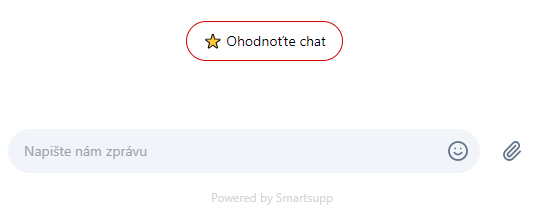
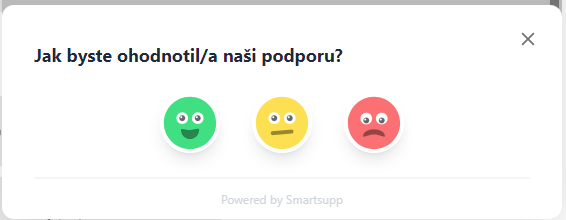
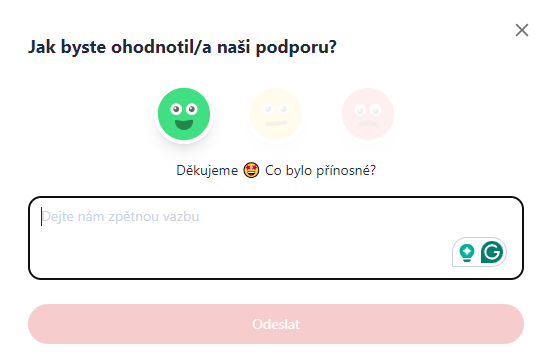
- Enter feedback for the whole conversation at the end of the conversation. You'll see options (emoticons) for feedback.
-
-
Optionally leave text feedback when necessary. When the reply is not precise, try to link the proper source of information.
-
-
Updated 8 months ago